
Inside every claim file
The tools that finish the file.
Sketch the loss, review the supplement, draft the estimate and write the note without leaving the claim. Every draft waits for the adjuster's review.
Sketch and measurements · every edition
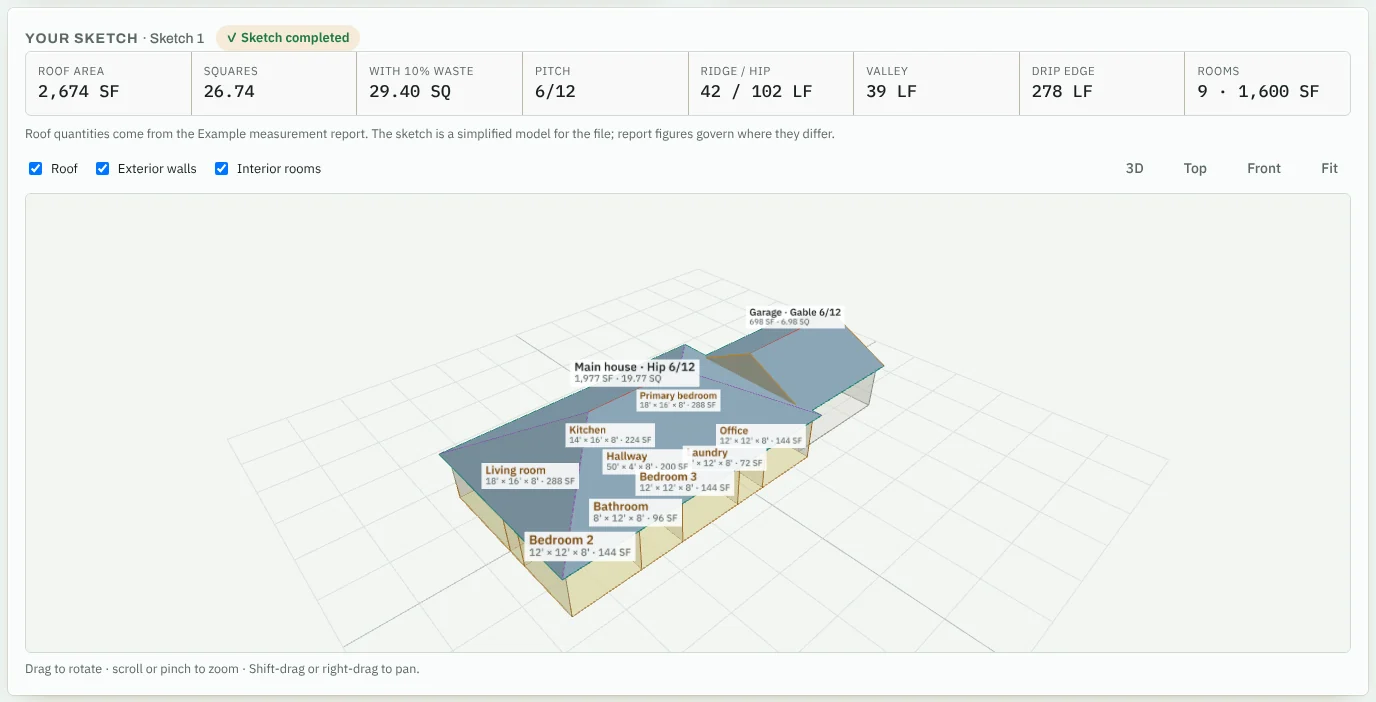
Sketch it once. Use it everywhere in the file.
Build a measured floor plan, roof sketch and 3D model of the structure the way that suits the loss. The numbers go straight into the estimate and the report.
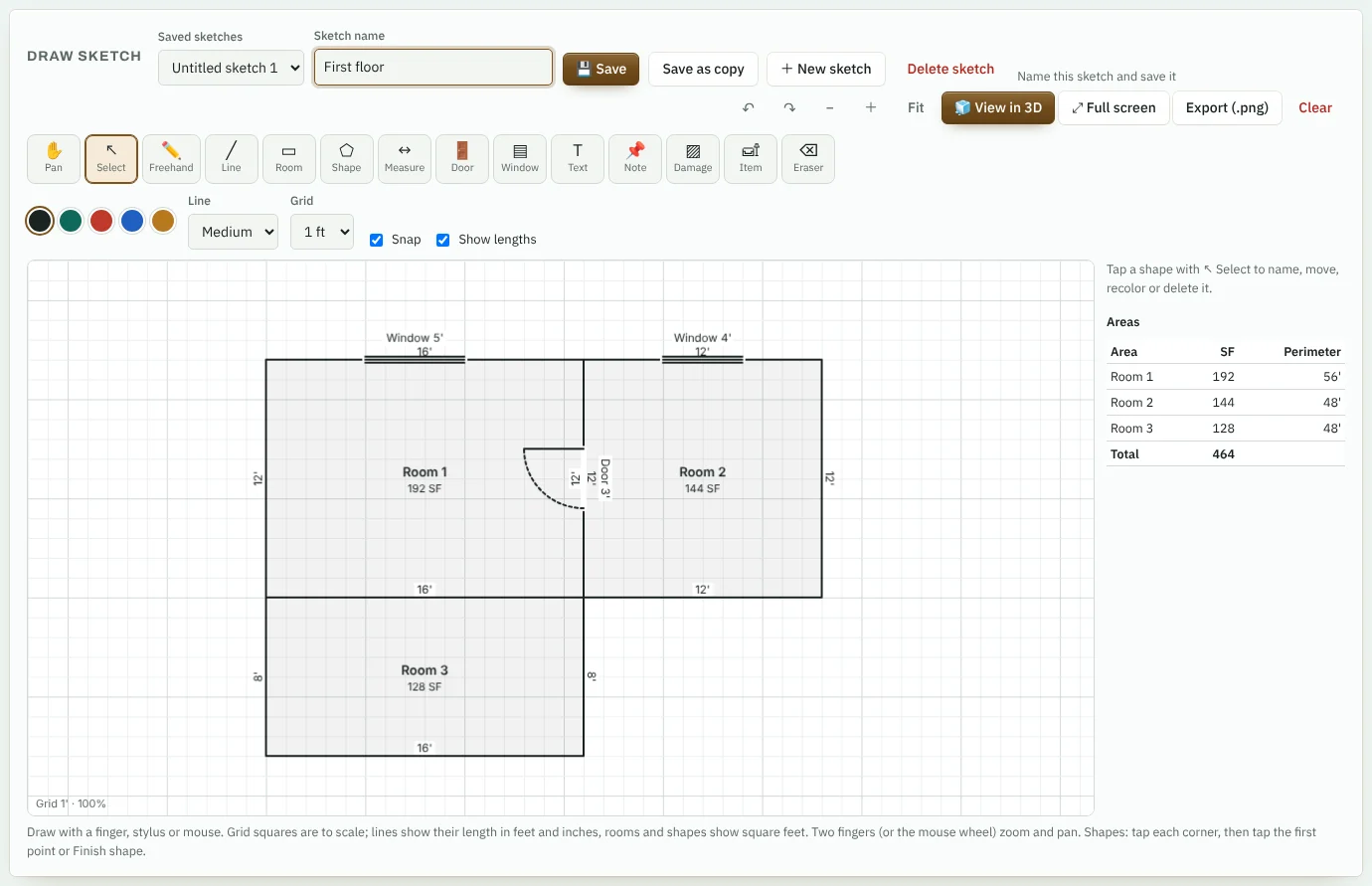
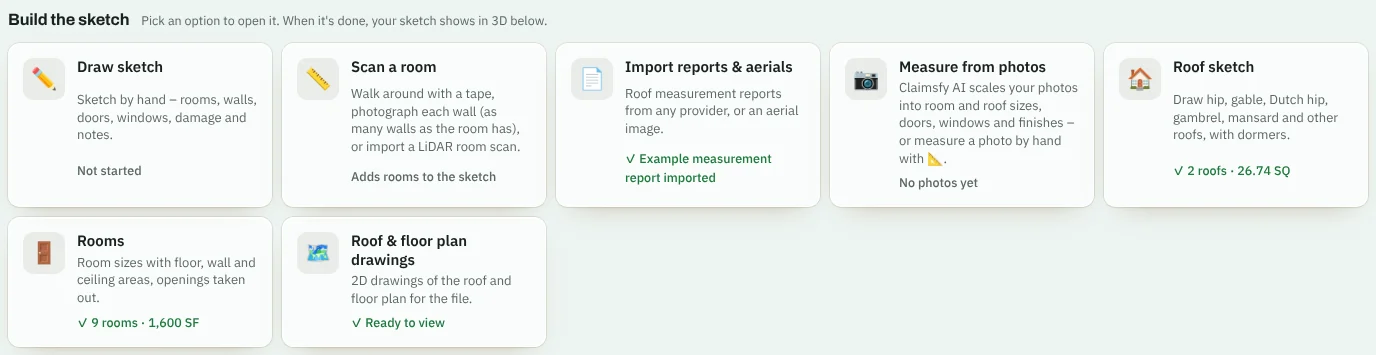
Eight ways to build a sketch
Rooms, walls, doors, windows, damage areas and notes, drawn to scale.
Work around the room wall by wall with a tape or laser measure. The room draws itself.
Bring in a room scan from a phone or tablet with a LiDAR sensor. Walls, doors and windows land on the sketch.
Import a roof measurement report, or build the roof from an aerial photo.
Claimsfy AI turns inspection photos into room and roof sizes for you to confirm.
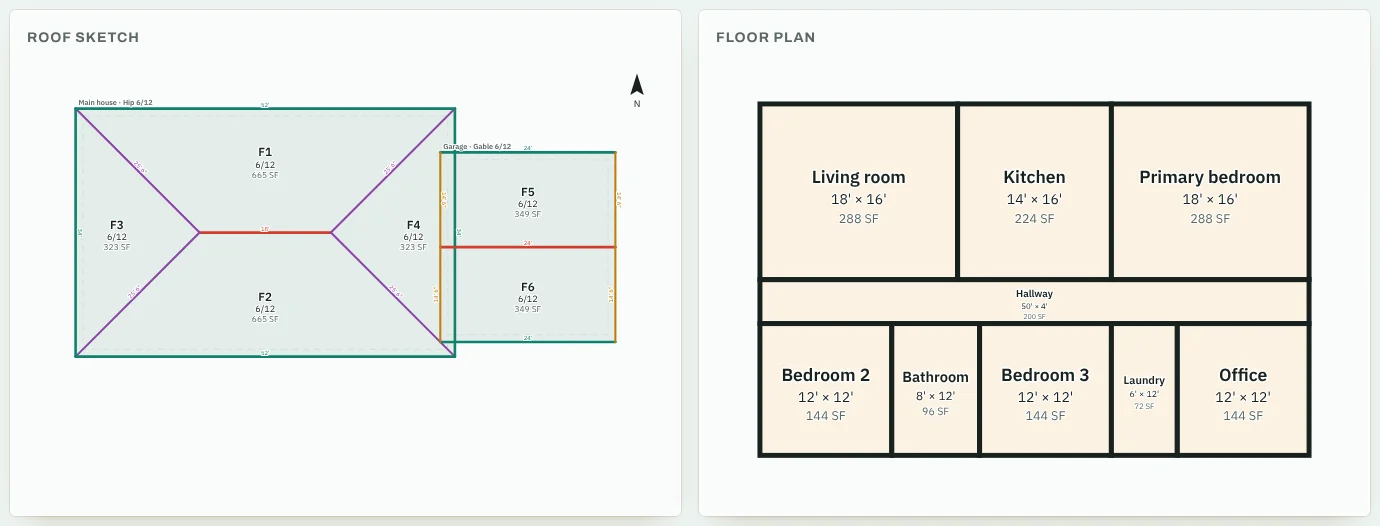
Hip, gable, Dutch hip, gambrel, mansard and more, with dormers, pitch, squares and waste.
Floor, wall and ceiling areas for each room, with door and window openings taken out.
A 3D model you can turn, plus roof and floor-plan drawings for the report.
Quantities flow into the estimate. Roof squares, drip edge, ridge, wall and floor areas fill in the matching line items, so nothing is measured or typed twice.
Supplement review · Desk, Carrier and TPA
Review a supplement line by line, in minutes
Compare a contractor, public adjuster or attorney estimate with yours. See every difference, accept what you agree with, and keep a clear record of the decision.
- Add their estimate
Bring in the outside estimate and name who sent it.
- See every difference
Lines marked the same, quantity changed, price changed, new item, or missing from theirs.
- Apply what you accept
Pick the changes, or edit a quantity to accept part of a line. Your estimate updates and each line notes the supplement.
- Send the comparison
Export a supplement comparison report as PDF, Word or Excel.
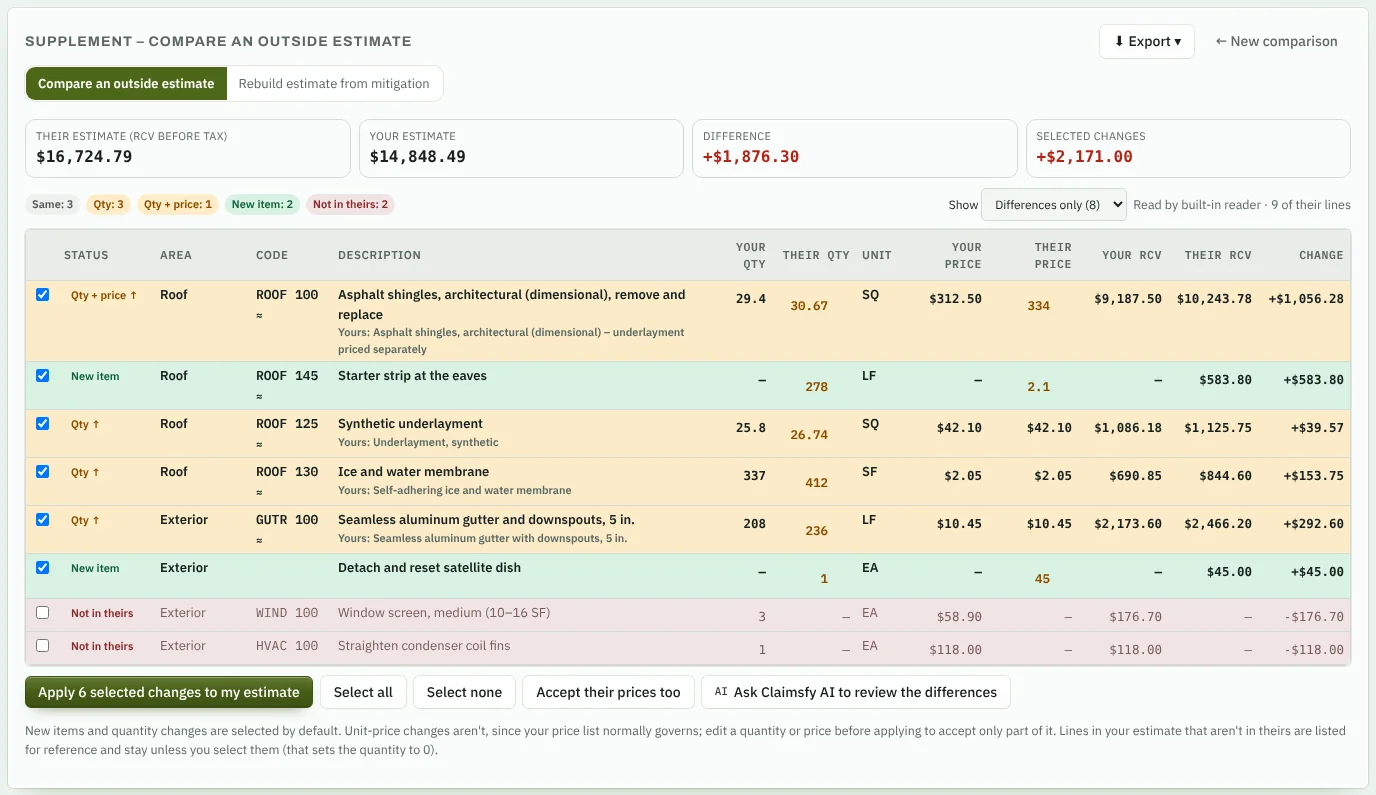
Totals up front
Their estimate, yours, the difference and the value of the changes you've selected.
Every supplement on file
S1, S2 and on, each with what was received, what changed and what was applied.
Rebuild from mitigation
Start your estimate from a mitigation company's estimate instead of keying it line by line.
Estimates from photos · all editions
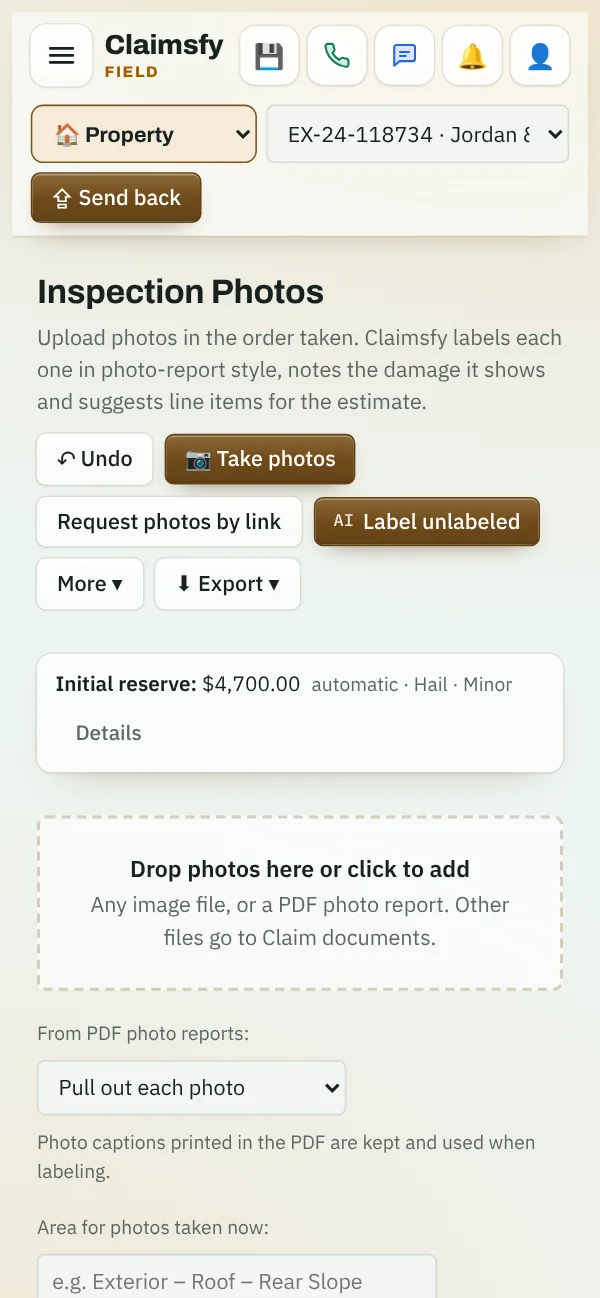
From damage photos to a first estimate
- Photo labels and captions in photo-report style, in the order taken.
- Damage notes for each photo, ready for the report.
- A first estimate draft by area, with the line items the photos support.
- Claimsfy's own price list with trade codes, item numbers and descriptions written by Claimsfy. Your company sets its prices, adds its own items and brings prices in from Excel.
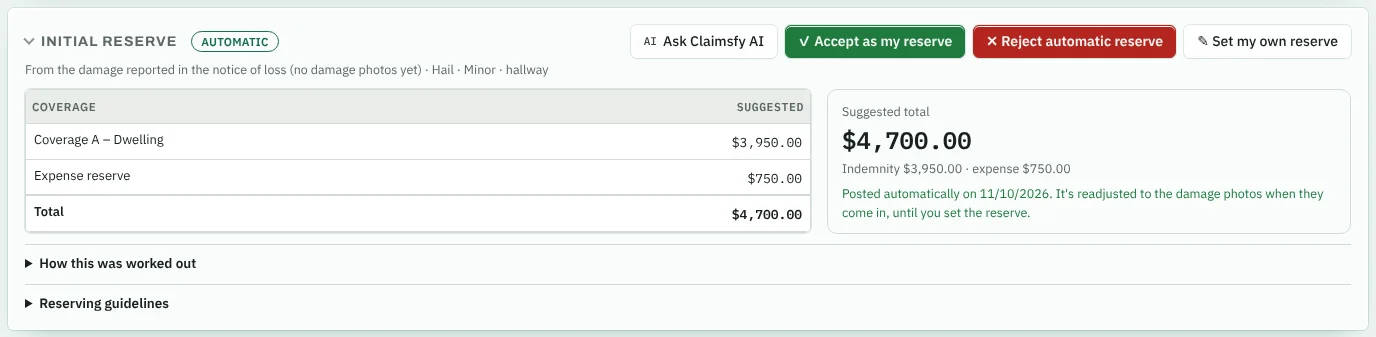
- An initial reserve as soon as the photos are in.
- Photo report export with numbered photos and captions.
You review and approve every label, line and number before it goes anywhere.
File review and reserves · Desk, Carrier and TPA
A first-review note before your first call
- Initial file review note from the documents in the file.
- Suggested reserves by coverage, with expense reserves.
- Possible coverage concerns flagged for you to check.
- Your contact call can be added to the same note.
- Payments and authority requests with limits for each adjuster.
Notes, letters and reports · Desk, Carrier and TPA
Your wording, filled in from the file
Each adjuster saves their own templates. Claimsfy fills them in from the claim, and the adjuster edits and signs off.
- Personal note templates per adjuster. In Claimsfy Desk, adjusters also write new ones or save any note as a template.
- Letters including reservation of rights, settlement and denial drafts.
- Letter review in Claimsfy Desk checks each letter against the claim letter rules of the state where the loss is, in all 50 states and DC: the Department of Insurance notice, required wording, what a denial must say and the deadlines, with the citation for each.
- Narrative and photo reports with your company's logo and header.
Templates each adjuster can save
Client portal · Desk and TPA
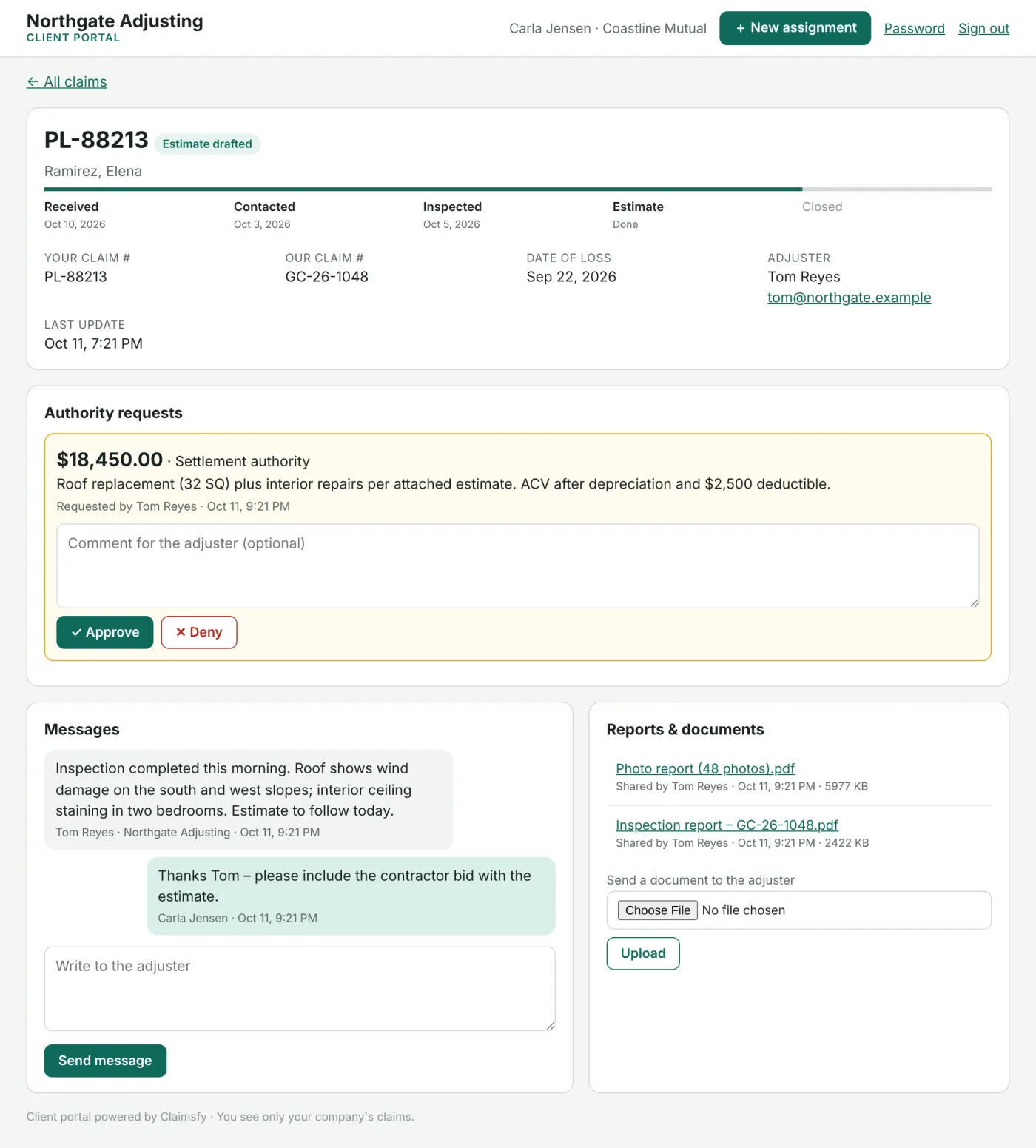
Clients see what you share, nothing more
- Status and progress from received to closed.
- Authority approvals with a comment, recorded on the claim.
- Messages and documents both ways.
- New assignments your clients send through the portal.
- Unlimited client users at no extra cost.
Try the tools on a real claim
Start a 24-hour free trial, or book a walkthrough on one of your own files.