
Every edition is an installable app
Claimsfy installs on every phone and computer you use — no app store needed.
Open your workspace link in the browser, choose Install, and Claimsfy opens in its own window with its own icon. The claim file stays on the device, so it works with no signal.
Pick your edition
One app per edition
Each edition installs as its own app, named for the edition. Install the one your workspace runs. Firms with several editions install each one.

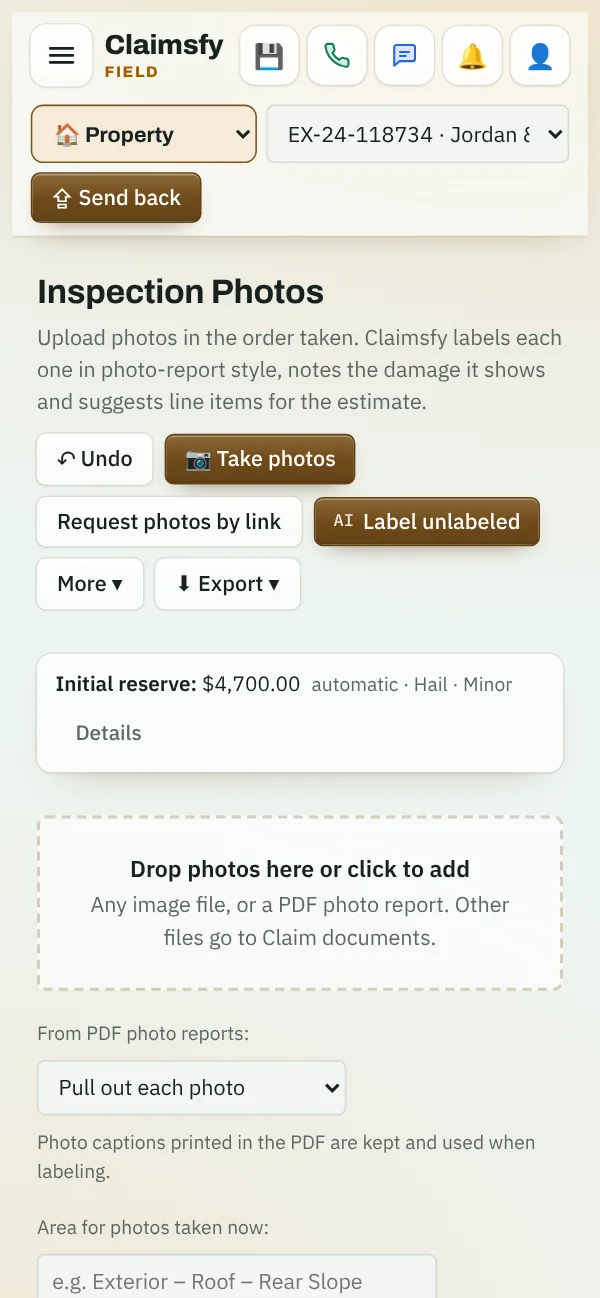
Claimsfy Field
Installs as "Claimsfy Field". For field adjusters on daily and catastrophe claims.
About Field
Claimsfy Desk
Installs as "Claimsfy Desk". For desk adjusters and supervisors.
About Desk
Claimsfy Carrier
Installs as "Claimsfy Carrier". For carrier claims departments.
About Carrier
Claimsfy TPA
Installs as "Claimsfy TPA". For third-party administrators and self-insureds.
About TPA
Claimsfy QA
Installs as "Claimsfy QA". For QA review of field adjuster files.
About QA
Claimsfy Letters
Installs as "Claimsfy Letters". For drafting and checking claim letters.
About Letters
Claimsfy Estimate
Installs as "Claimsfy Estimate". For estimates and mitigation review.
About Estimate
Claimsfy Contents
Installs as "Claimsfy Contents". For contents pricing and appraisal.
About Contents
Claimsfy Medical
Installs as "Claimsfy Medical". For medical bill intake, review and provider billing.
About Medical
Claimsfy Verify
Installs as "Claimsfy Verify". For checks on photos and documents.
About Verify
Claimsfy Public Entity
Installs as "Claimsfy Public Entity". For cities, counties, schools and risk pools.
About Public EntityHow to install
Three taps from your workspace link
Your workspace link is your company's address, for example yourcompany.claimsfy.com. Open it in the browser, sign in, then follow the steps for your device.
Use Safari (the blue compass app). Chrome and other browsers on iPhone can't add Claimsfy as an app. The orange circle in each picture shows what to tap.
- Open your workspace in Safari and sign in
At the bottom of the screen, to the right of the web address, tap the button with three dots (•••).
- Tap Share
It's at the top of the menu that opens, next to a square with an arrow pointing up.
- Tap Add to Home Screen
Scroll down the list that slides up from the bottom. If you don't see it, tap View More or Edit Actions at the bottom of the list.
- Leave Open as Web App on, then tap Add
Add is at the top right. The Claimsfy icon is now on your Home Screen; open Claimsfy from there from now on.
No three dots? On older iPhones (iOS 18 and earlier)
Tap the Share button in the toolbar at the bottom of Safari (a square with an arrow pointing up), then Add to Home Screen, then Add at the top right. On iPad, the Share button is at the top right, next to the address.
Already added it? Open Claimsfy from the Home Screen icon, not from Safari, so you stay signed in and it opens full screen.
Use Chrome. Most Android phones and tablets show an install bar on their own.
- Open your workspace link
In Chrome, go to your company's Claimsfy address and sign in.
- Tap the install bar
If Chrome offers "Install" or "Add Claimsfy to Home screen" at the bottom, tap it and skip the next step.
- Or open the ⋮ menu
Tap the three dots at the top right, then Install app (on some phones, Add to Home screen).
- Tap Install
The Claimsfy icon appears with your other apps and in the app drawer.
Use Chrome or Edge. Firefox on Windows can't install apps; use it in a tab instead.
- Open your workspace link
In Chrome or Edge, go to your company's Claimsfy address and sign in.
- Click the install icon
A small icon appears at the right end of the address bar: a screen with a down arrow in Chrome, a grid with a plus in Edge.
- Or open the ⋮ menu
Click the three dots at the top right, then Install Claimsfy… (in newer versions of Chrome it's under Cast, save and share; in Edge under Apps).
- Click Install
Claimsfy opens in its own window and is pinned to the Start menu. Pin it to the taskbar if you like.
Use Chrome, Edge or Safari 17 or later (macOS Sonoma and later).
- Open your workspace link
Go to your company's Claimsfy address and sign in.
- Chrome or Edge: click the install icon
At the right end of the address bar, as on Windows. Or open the ⋮ menu and choose Install.
- Safari: File, then Add to Dock
From the menu bar choose File, then Add to Dock, then Add.
- Open it from the Dock or Launchpad
Claimsfy runs in its own window with its own icon, like any other Mac app.
Use Chrome, which is built in.
- Open your workspace link
In Chrome, go to your company's Claimsfy address and sign in.
- Click the install icon
At the right end of the address bar, as on Windows.
- Or open the ⋮ menu
Click the three dots at the top right, then Install Claimsfy… (in newer versions of Chrome it's under Cast, save and share).
- Click Install
Claimsfy appears in the launcher and on the shelf. Open it from there from now on.
Already signed in? The same button is inside the app. Open the 👤 menu at the top right and choose 📲 Install Claimsfy, followed by your edition's name.
Works without a signal
The claim file stays on the device
Once installed, Claimsfy keeps your claims on the phone, tablet or computer. Lose the signal in a basement, an attic or a storm zone and you keep working.
- Claims, photos, notes, letters and estimates are saved on the device as you work.
- Nothing waits for a connection except what needs one: syncing to the office and Claimsfy AI.
- Sync when you're back online. Changes reach your workspace and your team as soon as the device has a connection again.
- Open it anywhere. The app starts from its icon with or without a signal; you don't need to load a web page first.
Claimsfy AI keeps going
Ask offline, get the answer when you're back
Claimsfy AI runs on Claimsfy's servers, so it needs a connection. The claim file does not. Anything you ask the AI while you have no signal waits in the AI outbox and runs by itself when the connection is back.
Is it in the App Store or Play Store?
Not yet. Install it from the browser with the steps above; it works the same way, with its own icon and window. Store listings are planned for firms whose device policies require them.
How do updates work?
They're automatic. The app tells you when a new version is ready. There is nothing to download from a store.
Where is my data stored, and is it secure?
The claim file is kept in the browser's storage on the device, for your workspace only, and syncs to your workspace's private server. Everything on the server is covered by the protections on our security page. For how the local copy is protected on a shared or lost device, and what happens when you sign out, ask us.
Does the app cost extra?
No. Installing is part of every edition, on as many devices as you use. Only users are counted, not devices.
Can I use it in a browser tab instead?
Yes. Everything works in a normal browser tab too. Installing adds the icon, its own window and the ability to open it with no signal.
Do I install one app or several?
One per edition you use. A firm on Field and Desk installs "Claimsfy Field" on the adjusters' phones and "Claimsfy Desk" on the desk team's computers. Each is its own workspace link.
Don't have a workspace yet?
Field, QA, Letters, Estimate and Contents start with a 24-hour free trial; the other editions start with a short pricing questionnaire. Once your workspace is set up, install it on any device in a few taps.